Microsoft Fabric
Capacity Management
Data Engineering
Data Platform
Architecture
FinOps
OneLake
Fabric Shortcuts
Power BI
Fabric Capacities: The Administrator's Guide
Bmatix — Kontich, Belgium
About this talk
Fabric Capacities are deceptively simple to provision — but one runaway query can throttle your entire organization. This session is the administrator’s deep dive into bursting, smoothing, overage debt, throttling, and the governance levers that keep workloads in check. We cover monitoring with the Capacity Metrics App and Real-Time Hub, cost optimization with reservations and autoscale billing, Spark and SQL Database governance, and practical sizing workflows to go from proof of concept to scaled adoption.
In these slides
- Understanding Capacities
- Bursting & Smoothing
- Throttling
- When Capacity Runs Out
- Protecting Your Capacities
- CU Consumption by Workload
- Capacity Planning & Cost
- Monitoring
From the event
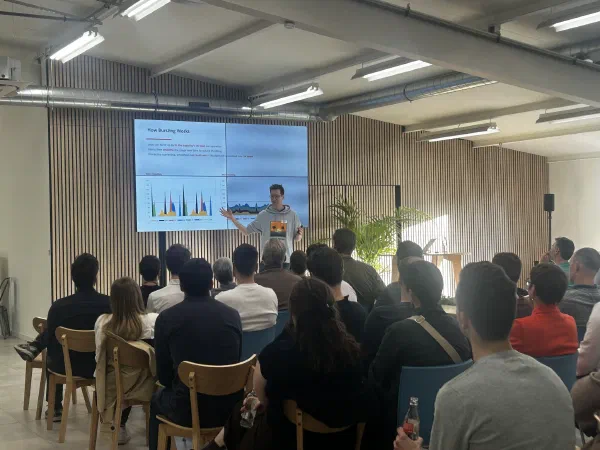
2 photos

Fabric Capacities: The Administrator’s Guide Sam Debruyn dataMinds Meetup | Bmatix, Kontich | 29 April 2026
About Me Sam Debruyn Freelance Data Platform Architect Microsoft MVP (Data Platform) Building data platforms on Azure & Microsoft Fabric sam@debruyn.dev | debruyn.dev
Agenda 1. Understanding Capacities 2. Bursting & Smoothing 3. Throttling 4. When Capacity Runs Out 5. Protecting Your Capacities 6. CU Consumption by Workload 7. Capacity Planning & Cost 8. Monitoring
Understanding Capacities
Workspaces & Capacities A capacity is a shared resource pool • Multiple workspaces, teams, and workload types compete for CUs • Data engineering, analytics, and AI all run on the same pool Blast radius: throttling affects EVERY workspace on the capacity • One runaway Spark job can slow down everyone’s reports Design principle: separate what shouldn’t impact each other • Production vs. Development vs. Testing • Data engineering vs. Self -service analytics • Business -critical vs. Exploratory workloads
Fabric Capacity SKUs SKU Capacity Units CU’s (per 30s) PBI Equiv. vCores F2 2 60 - 0.25 F4 4 120 - 0.5 F8 8 240 EM1 1 F16 16 480 EM2 2 F32 32 960 EM3 4 F64 64 1,920 P1 8 F128 128 3,840 P2 16 F256 256 7,680 P3 32 F512 512 15,360 P4 64 F1024 1,024 30,720 P5 128 F2048 2,048 61,440 - 256
Bursting & Smoothing
How Bursting Works Jobs can burst up to 3× the capacity’s CU limit per operation Fabric then smooths the usage over time to reduce throttling Interactive operations: smoothed over 5 – 60 min — Background: smoothed over 24 hours Before Smoothing After Smoothing
Interactive vs. Background Operations Interactive • Power BI report views • DAX queries • SQL Database queries • Direct Lake operations • KQL queries Smoothing: 5 – 60 min Background • Semantic model refresh • Spark jobs / notebooks • Dataflow Gen2 runs • Pipeline activities • Warehouse queries Smoothing: 24 hours
Overage & Carry Forward When smoothed usage exceeds the SKU’s CU limit: → The excess becomes queued debt Debt only burns down when future capacity is free If new work keeps arriving, debt accumulates Cumulative overage is what triggers throttling Mon Tue Wed Thu Fri Capacity Limit Overage ↑ Think of it as a credit card: bursting now, paying later. Keep spending, and the bank cuts you off.
The 24-Hour Risk A single background job can consume an entire capacity for 24h Example: one Spark notebook using 3× burst on an F64 → 192 CUs consumed, smoothed over 24h → The capacity only has 64 CUs per 30s window All other users on the same capacity are affected This is why protection mechanisms exist This is the fundamental risk that drives capacity design decisions
Job-Level Bursting Switch Burst ON (default) • 3 × CU per job • Fewer concurrent jobs • Max single -job performance Burst OFF • 1× CU per job • More concurrent jobs • Better for shared workloads Not available when Spark autoscale billing is enabled
Throttling
Throttling Policy Stages ≤10 min: Overage protection → No throttling, jobs consume future capacity freely 10 – 60 min: Interactive Delay → Interactive jobs delayed 20s at submission 60 min – 24h: Interactive Rejection → Interactive rejected, background still runs >24h: Background Rejection → All requests rejected
What Users Experience When throttled, users see: • Slow or unresponsive Power BI reports • Failed semantic model refreshes • “This capacity is currently overloaded” errors • Blocked Copilot interactions • Pipeline failures and timeouts Background rejection (>24h stage) = complete outage for all users
How Recovery Works The system heals naturally as smoothed usage drops below thresholds Recovery order (reverse of escalation): 1. Background operations resume first (overage drops below 24h) 2. Interactive operations resume next (overage drops below 60 min) 3. Full recovery when overage < 10 min Recovery can take up to 24 hours All Rejected Overage > 24h ▼ Interactive Rejected Overage > 60 min ▼ Healthy Overage < 10 min
Smoothing & Paused Capacities When you pause a capacity: → Running workloads stop within 10 minutes → New requests cannot start → All deferred usage reconciled at PAYG rate → OneLake storage still bills while paused When you resume: → Zero utilization, clean slate → No carry-forward debt Running Smoothed CUs deferred to future ▼ PAUSE Paused All deferred CUs → reconciled & billed immediately ▼ RESUME Clean Slate Zero utilization, no debt
When Capacity Runs Out
Strategy 1: Optimize Approach: • Work with content creators to optimize CU usage • Establish and follow best practices • Review expensive queries/refreshes • Optimize DAX, reduce unnecessary refreshes Pros: • Avoids increased cost • Learning carries over Cons: • Difficult and time-consuming • Requires cooperation from many
Strategy 2: Scale Up F32 32 CUs → F128 128 CUs Approach: • Move to a bigger SKU size • Enable autoscale billing • More CUs for every item Easy, immediate relief Higher cost Bad actors still a problem F<64: license update can take a day!
Strategy 3: Scale Out F64 All workloads on one capacity → F32 ETL / Spark F16 Analytics F16 Self-service F4 Dev/Test Approach: • Create multiple smaller SKUs • Split by workload, org, or type • Use OneLake shortcuts for cross-capacity data access Isolation from bad actors Cost transparency per team More management overhead
Strategy 4: Isolate Main Capacity (F64) BI ETL Heavy Spark job → Isolation (F16) Heavy Spark job Patterns: "Try-out" • "Rescue" • "Time-out" Approach: • Monitor & identify problem workloads • Move them to dedicated capacities Surgical isolation Flexibility to right-size Requires planning Extra capacity cost Need monitoring to find culprits
Pause & Resume — The Gotchas What happens when you pause: • Running workloads stop within 10 minutes • New requests cannot start • All deferred usage reconciled immediately at PAYG rate • OneLake storage still bills while paused • Resume = clean slate (zero utilization, no debt) Before pausing, consider: • How much “open balance” (queued debt) exists? • How long would you pause? • What is the cost of reconciliation + downtime? Example: F64 with heavy burst debt Reservation cost: ~€0.85/hr = €20/day Scenario A: Keep running Debt smoothed over 24h at reservation rate Cost: €0 (already covered by reservation) Scenario B: Pause after 6h of heavy bursting 8h of deferred usage reconciled at PAYG rate PAYG rate ≈ 2× reservation = ~€1.70/hr Cost: 8h × €1.70 = €13.60 + downtime! Don’t blindly pause — especially if hoping to reduce costs
The Practical Hybrid Approach Reserve baseload + pay-as-you-go for peaks Pattern: • Reserved capacity (e.g. F64) for steady -state 24/7 workloads • PAYG capacity (e.g. F32) for periodic heavy workloads • Auto -pause PAYG via Logic App / Azure Automation Combine with: • Spark autoscale billing (separate billing, set max CU) • SQL Database autoscale billing (capacity or workspace level) • Copilot capacity (dedicated CU pool) Right-size each capacity for its purpose
Protecting Your Capacities
Surge Protection Capacity-level (GA) • Limits background jobs before full 24h consumed • Protects interactive usage (Power BI reports) • Recovery limit: configurable % Workspace-level (Preview) • Set a CU% limit per workspace • Only the offending workspace is blocked (24h) • Mission-critical mode: exempt key workspaces APIs available for automation Without Surge Protection: Background jobs consume full capacity Interactive squeezed → throttled With Surge Protection: Background (limited) Interactive protected ← Admin-set limit
Capacity Overage Status: Public Preview Opt-in per capacity: automatically pay more to avoid throttling • When overage would trigger throttling, extra CUs are billed • Billed at 3× the normal pay-as-you-go rate • 24-hour spending cap to prevent runaway costs Best for: • Production -critical workloads where downtime > cost • Capacities with unpredictable burst patterns
Copilot Capacity Dedicated capacity for Copilot CU consumption • Per-user assignment, tenant-controlled How it works: • Copilot = background ops ( 24h smoothing ) • One session can impact capacity for hours • Main capacity throttle → Copilot stops too Operations Agent also consumes background CUs • 4 meters: Copilot, Agent Compute, Reasoning, Storage Tip: isolate Copilot on its own capacity
Max Spark Job Lifetime Status: Coming Soon Workspace-level hard ceiling on Spark job duration • Admin specifies a time limit (e.g. 1 hour) • Automatic termination when hit — no exceptions Prevents runaway jobs, stuck sessions, cost spikes
Multi-Capacity Strategy Capacity A — General Purpose Sized for typical needs Surge protection + reservations Capacity B — Self-Service Workspace surge protection per team Copilot capacity attached Capacity C — Heavy Workloads Pause when not needed Resize on demand Capacity D — Dev & Test Small size (F2/F4) Pause/resume aggressively Each capacity has its own autoscale, surge protection, and billing
CU Consumption by Workload
Apache Spark — Capacity & Governance Capacity consumption • 1 CU = 2 vCores, burst up to 3× capacity CUs Autoscale billing (GA) • Capacity admin opt-in, set max CU limit • Spark jobs billed separately at PAYG rate • OneLake costs stay on capacity Governance levers (Capacity → Workspace → Env) • Disable Starter Pools (prevent noisy neighbours) • Custom Live Pools: warm nodes, 5–10 sec start • Admission policy & job concurrency limits • Session transparency for usage visibility • Max Spark Job Lifetime (coming soon) Resource Profiles (Preview) writeHeavy — optimized for ETL (new default) readHeavyForPBI — tuned for Direct Lake / PBI Eliminates complex Spark tuning for 90% of cases
Data Warehouse & SQL Analytics Uses Distributed Query Processor (DQP) Bursts to multiple nodes within milliseconds Users have no visibility into node count SQL Analytics Endpoints share capacity with Lakehouse Capacity (e.g. F64) Distributed Query Processor Node 1 CU Node 2 CU Node 3 CU Node N CU ↑ Query bursts across nodes (up to 12 × on F8+) Custom SQL Pools (Public Preview) Analytical Pool SELECT queries (reads, reports, Direct Lake) Ingestion Pool INSERT / UPDATE / MERGE (ETL, data loading) DQP Burst Factors F2: up to 32× | F4: up to 16× F8+: up to 12× Admins define pool splits & resource allocation per pool Default: capacity split 50/50 between analytical & ingestion pools. Custom pools let admins tune this.
SQL Database Compute Caps SQL Databases in Fabric can now set a max vCores limit Two options: • 4 max vCores — lighter workloads • 32 max vCores — heavier workloads Benefits: • Noisy-neighbour protection • Cost control: prevent one DB from consuming all CUs • Opt-in per database
Other Workloads Dataflow Gen2 Mashup Engine + Lakehouse staging consume CUs Data Pipelines Activity executions consume CUs per run VNET Data Gateway Extra CU consumption for private network access Event Streams / RTI Continuous CU consumption while streams are active
Capacity Planning & Cost
SKU Estimator & Sizing Workflow Step 1: Start with trial/test capacity Step 2: Run real workloads for 1-2 weeks Step 3: Open Metrics App → drill into hot timepoints Step 4: Read peak CU consumption per 30s window Step 5: Map observed CUs to F SKU (see SKU table) Online estimator: aka.ms/fabricskuestimator • Input workload mix: Spark, DW, PBI, refreshes • Output: recommended SKU and estimated CUs Always validate estimates with real data!
Regions Home region: set when your tenant was created Capacity region: chosen when creating a capacity in Azure Workspace region = its capacity’s region Why this matters for planning: • Reservations are scoped per region • Not all SKUs available in all regions • Non-Power BI workspaces can’t be moved cross-region • Data residency: your data stays in the capacity region • Inter-region bandwidth costs for cross-region shortcuts
Azure Quota Management Limits the number of CUs per subscription per region Quota determines the ceiling — max CUs you can provision Request a quota increase: • Auto-approved up to specific limits • Contact Microsoft support for larger increases Impact on automation: • If you provision capacities dynamically, check quota first • Prevents unauthorized excessive usage
Reservations — 41% Discount 1-year commit → 41% discount vs. PAYG Key concepts: • Reservation ≠ Capacity — it’s a pool of CUs • Based on CUs , not SKU names • Scoped: Billing Account / Subscription / Region Mental model: • Reservation = floor (minimum you always pay) • Quota = ceiling (maximum you can provision) Paused capacity = wasted reservation CUs! Azure Reservation: 128 CUs Capacity A F64 (64 CUs) Fully covered Capacity B F32 (32 CUs) Fully covered Capacity C F64 (64 CUs) 32 CU covered Remaining 32 CUs billed at PAYG rate (≈ 1.7× more expensive) Reservation = shared CU pool. Size it to match your always-on capacities.
Reservation Scenarios Single capacity fully covered: → F64 reservation covers F64 capacity, full discount Multiple capacities from one reservation: → 64 CU reservation covers 2× F32 capacities SKU exceeds reservation (mixed billing): → 64 CU reservation + F128 = 64 CU reserved + 64 CU PAYG Paused capacity = wasted CUs: → Reservation billed even when capacity is paused Reservation = floor | Quota = ceiling
Power BI Premium Per User (PPU) $24/month per user Includes all Power BI Premium features: • Paginated reports, deployment pipelines, XMLA endpoints • AI features, large datasets, high refresh rates When to use PPU vs. Fabric capacity: • PPU: small team, Power BI -only, predictable users • F SKU: broader Fabric workloads, variable usage PPU workspaces are separate from Fabric capacity workspaces
Licensing Overview F SKUs (Fabric) PAYG or Reserved | Full Fabric platform PPU $24/mo per user | PBI Premium features Pro $13.70/mo | Required for sharing Free View content on F64+ capacities
Monitoring
Capacity Metrics App The essential tool for capacity monitoring Key facts: • Regular Power BI report — filter, drill, export • Data in 30 - second windows (CU’s per timepoint) • Capacity admin role required to install • Shows smoothed usage, not actual execution Recent investments: • Health page — at-a-glance capacity health status • Timepoint Summary & Item Detail drill -downs • System Events tab (pause/resume/resize events) • Item History page — 30-day CU analysis per item
FUAM — Usage & Adoption Monitoring Fabric Usage and Adoption Monitoring Broader than Capacity Metrics App: • Who is using what, how often • Adoption trends across the organization • Not just capacity — also users, items, workspaces Use FUAM for organizational analytics Use Capacity Metrics App for capacity health
Capacity Events in Real-Time Hub Direct access to capacity telemetry in Real-Time Hub Two event types: • Capacity Summary: every 30 seconds (CU usage, throttling state) • Capacity State: on state changes (throttled, healthy, paused) What you can build: • Activator rules → instant alerts • Eventstream → Eventhouse dashboards • KQL queries for historical analysis
Capacity Chargeback Reporting Status: Public Preview Built-in cost allocation across your organization • Rolls up usage per workspace, item, and user • Covers compute and OneLake storage • Map to Azure billing for actual cost Turn-key FinOps solution: • No need to build custom chargeback reports • Allocate capacity cost to business units • Track workspace storage trends over time
Adoption Framework: 3 Phases Phase 1 Proof of Concept • What does my workload cost? • Where are the peak windows? • Which SKU covers my baseline? Phase 2 Go Live • Is my SKU stable under real load? • Which workloads need isolation? • Is surge protection enabled? Phase 3 Scaled Adoption • Can I automate scaling? • Are chargeback reports in place? • Am I monitoring in Real -Time Hub?
Sam’s Golden Rules 1. Separate environments, workloads (ELT, analytics, reporting), and data domain teams into their own Workspaces and Capacities 2. Reserve your baseload and use pay-as-you-go for the peaks 3. Use trial Capacities for newly onboarded workloads, monitor to understand and estimate their consumption
Useful Links SKU Estimator: aka.ms/fabricskuestimator Capacity Metrics App: aka.ms/FabricCapacityMetrics Fabric pricing: azure.microsoft.com/pricing/details/microsoft-fabric/ Fabric capacity docs: learn.microsoft.com/fabric/enterprise/licenses Surge protection docs: learn.microsoft.com/fabric/enterprise/throttling Blog posts on new features: blog.fabric.microsoft.com → search ‘capacity’
Questions? Sam Debruyn sam@debruyn.dev Download slides → debruyn.dev/dataminds26

Stay in the loop
See you at the next one?
I announce upcoming talks on LinkedIn — that's also where most of the conference chatter happens. Slides and recordings land right here on the speaking page. If you'd rather follow along quietly, the RSS feed has every new post and talk.
Other talks
27 Oct 2026
Thread by Thread: Lessons from Migrating to Fabric
Techorama · Kinepolis Jaarbeurs, Utrecht, the Netherlands
→
05 Feb 2026
Thread by Thread: Lessons from Migrating to Fabric
Fabric February · Oslo, Norway
→
12 Jun 2025
Fabric Capacities: Divide and Conquer
Fabric Belgium · Visser & Van Baars, Antwerp, Belgium
→